In Realm VTT you can enhance your NPCs and Characters with tokens from your favorite Patreon artist. You can even use tokens with odd scales, such as the beautifully crafted "pop-out" tokens for Pathfinder 2e on the Paizo store.
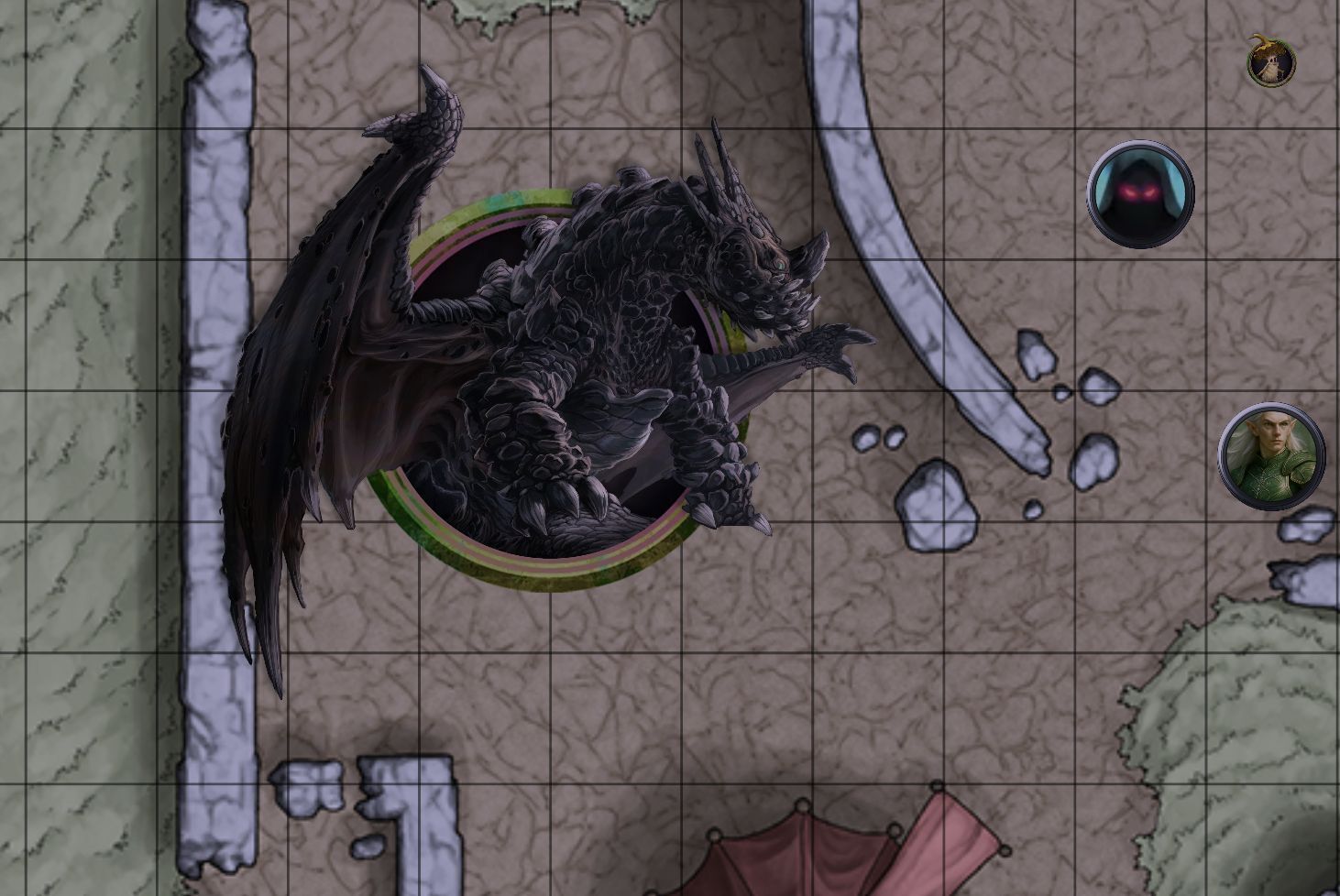
Custom tokens go a long way toward making your tabletop sessions feel immersive and memorable. Instead of relying on generic colored circles or default token art, you can give every monster, NPC, and villain a distinct visual identity that matches your narrative. Whether you are running a gritty dungeon crawl in D&D 5e or a sprawling Pathfinder 2e adventure path, the right token art helps your players instantly recognize threats, allies, and the world around them.
Why Custom Tokens Matter
Default tokens get the job done, but custom artwork elevates the entire play experience. Here are a few reasons to invest time in building out your token library:
- Instant recognition. When a player sees a unique dragon token on the map, the encounter feels real before initiative is even rolled. Distinct tokens reduce confusion in crowded combats where multiple creature types share the battlefield.
- Narrative reinforcement. A recurring villain with a bespoke token builds tension every time it appears. Your players will remember that token — and the dread that comes with it.
- Consistent style. By sourcing tokens from a single artist or art pack, you can maintain a cohesive visual aesthetic across your entire campaign, which makes your maps look polished and professional.
- Accessibility. High-contrast or stylistically distinct tokens help players who may struggle to differentiate between similar-looking default icons, especially on complex maps with many creatures.
Where to Find Quality Monster Token Art
Before you start uploading, you need artwork. There are several great sources for custom token art that work well in Realm VTT:
- Patreon creators. Artists like Forgotten Adventures, Tom Cartos, and many others offer enormous packs of token art for a monthly subscription. These packs often include hundreds of monsters, NPCs, and player character options in a consistent art style.
- The Paizo store. If you play Pathfinder 2e, the official Paizo store sells beautifully illustrated pop-out style tokens that extend beyond the standard grid square. Realm VTT fully supports these oversized tokens with its scale adjustment feature.
- Marketplace and community packs. Keep an eye on the Realm VTT Marketplace and community forums for shared token packs. Other GMs often curate and share themed sets that can save you hours of searching.
- Create your own. If you have artistic skill or enjoy using tools like GIMP, Photoshop, or even AI image generators, you can make tokens that are perfectly tailored to your setting. Just export them as transparent PNGs at a reasonable resolution for the best results on the VTT canvas.
Design Tips for Great-Looking Tokens
Not all token images are created equal. Here are some practical design tips to keep in mind when selecting or creating your token art:
Resolution and file size. Aim for token images between 256x256 and 512x512 pixels for standard 1x1 creatures. Going higher than that can slow down map loading without any visible benefit at typical zoom levels. For larger creatures that occupy 2x2 or 3x3 grid spaces, scale the resolution proportionally — a 2x2 token at 512x512 still looks sharp.
Transparent backgrounds. Tokens with transparent PNG backgrounds look dramatically better on the map than tokens pasted onto a white or colored square. When the background is transparent, the token blends naturally into whatever terrain it sits on, whether that is a dungeon corridor, a forest clearing, or an open ocean.
Consistent framing. If you use tokens with circular borders, stick with circular borders across your entire set. Mixing bordered and unbordered tokens, or mixing circles with squares, creates a visual mismatch that can be distracting. Pick one style and commit to it for the campaign.
Pop-out tokens and scale. Pop-out tokens — where the creature's art extends beyond the token border — look spectacular for boss monsters and large creatures. In Realm VTT, you can set these to 2x2, 3x3, or larger scales so they properly overflow their grid space. This is especially effective for dragons, giants, and other imposing foes where you want the art to dominate the map.
Color and contrast. Make sure your tokens are readable against both light and dark map backgrounds. A very dark token can vanish on a shadowy cave map, while a very bright token might wash out on a snow-covered battlefield. Tokens with a subtle border or outline tend to remain visible in all conditions.
Step-by-Step: Uploading Custom Tokens
We suggest that you create your own module so that you can apply the tokens to another campaign without uploading them a second time. Want to create a module to apply the tokens to the D&D 5e SRD monsters? Here's how to do it:
- Create a new campaign, name it something such as "Token Development" or "SRD Tokens DEV." Note: Once you've created your module do not delete your development campaign! This is important to ensure links function and you can easily fix mistakes later.
- Click on Modules and click on "5e 2024 SRD Content - Monsters" and click Import
- Right click on an NPC you wish to export a custom token for, and click "Copy"
- Edit the name of the NPC, and remove the "(Copy)" part so that the name matches exactly what was in the original campaign
- Click on the NPC portrait icon
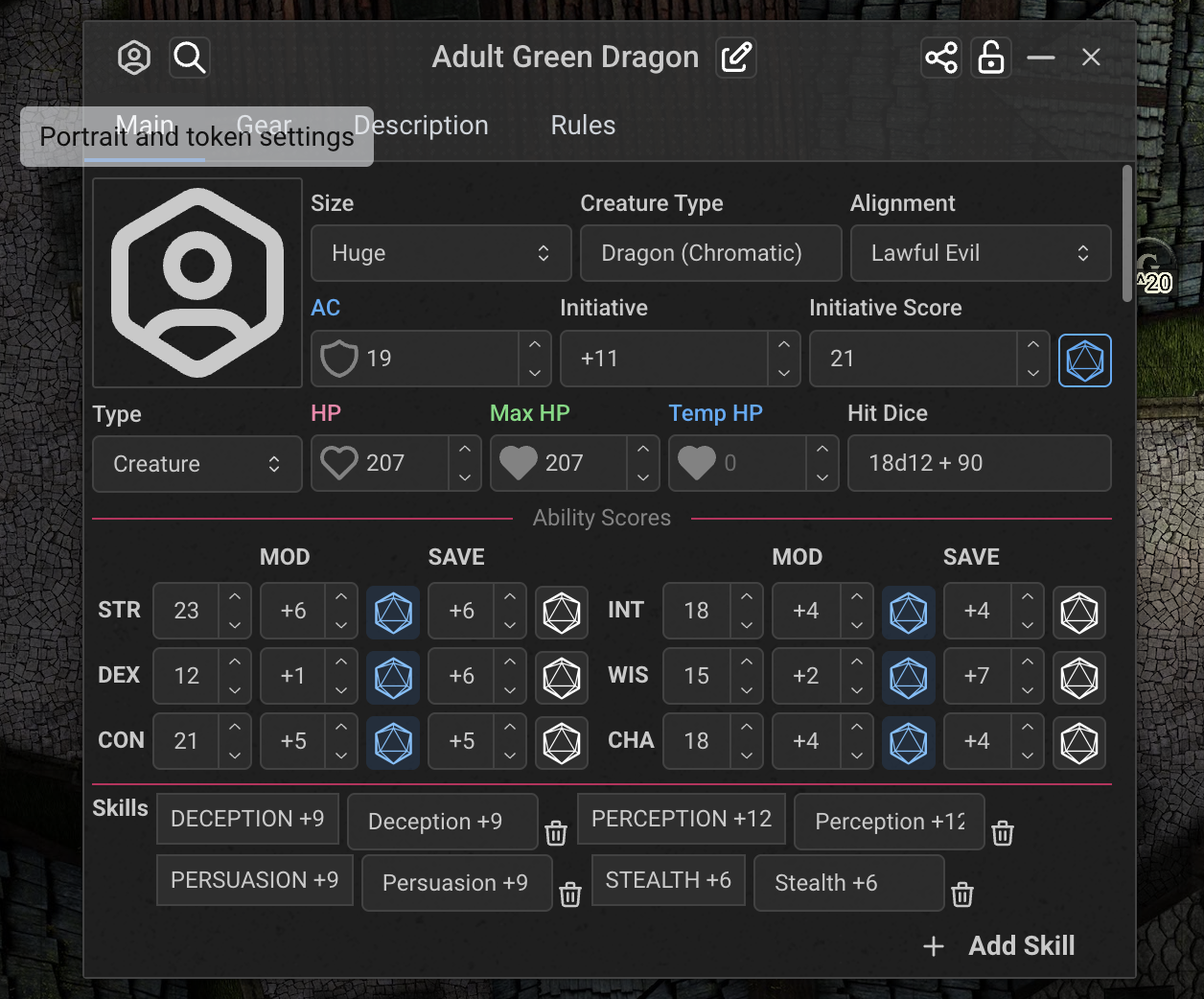
- Click "Upload Custom Token"
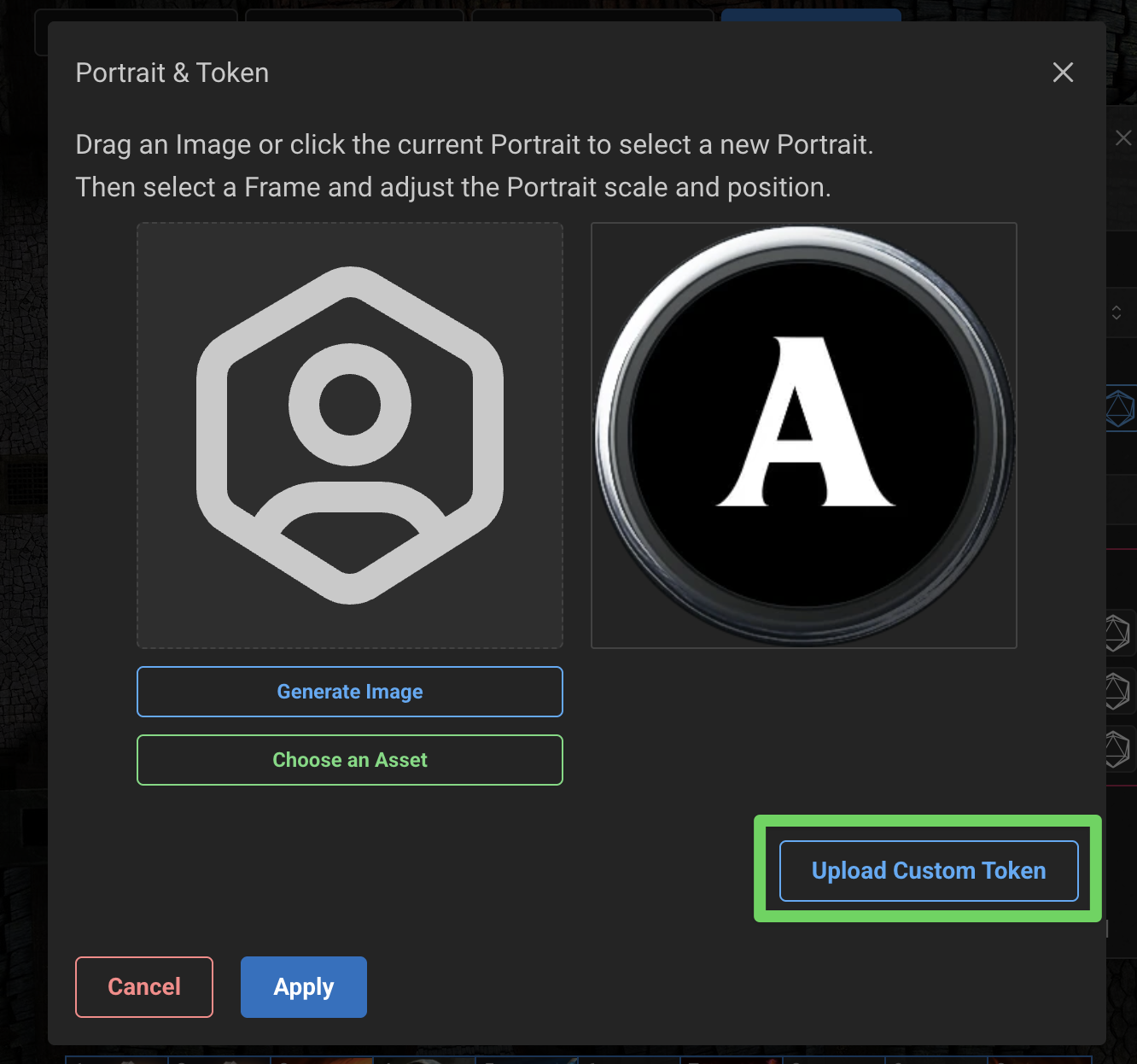
- Select the custom token you wish to upload, then, if the token is larger than 1:1 scale (such as if it pops out of the frame like in the screenshot at the top of this article) adjust the scale to the proper value (2x2, 3x3, etc.).
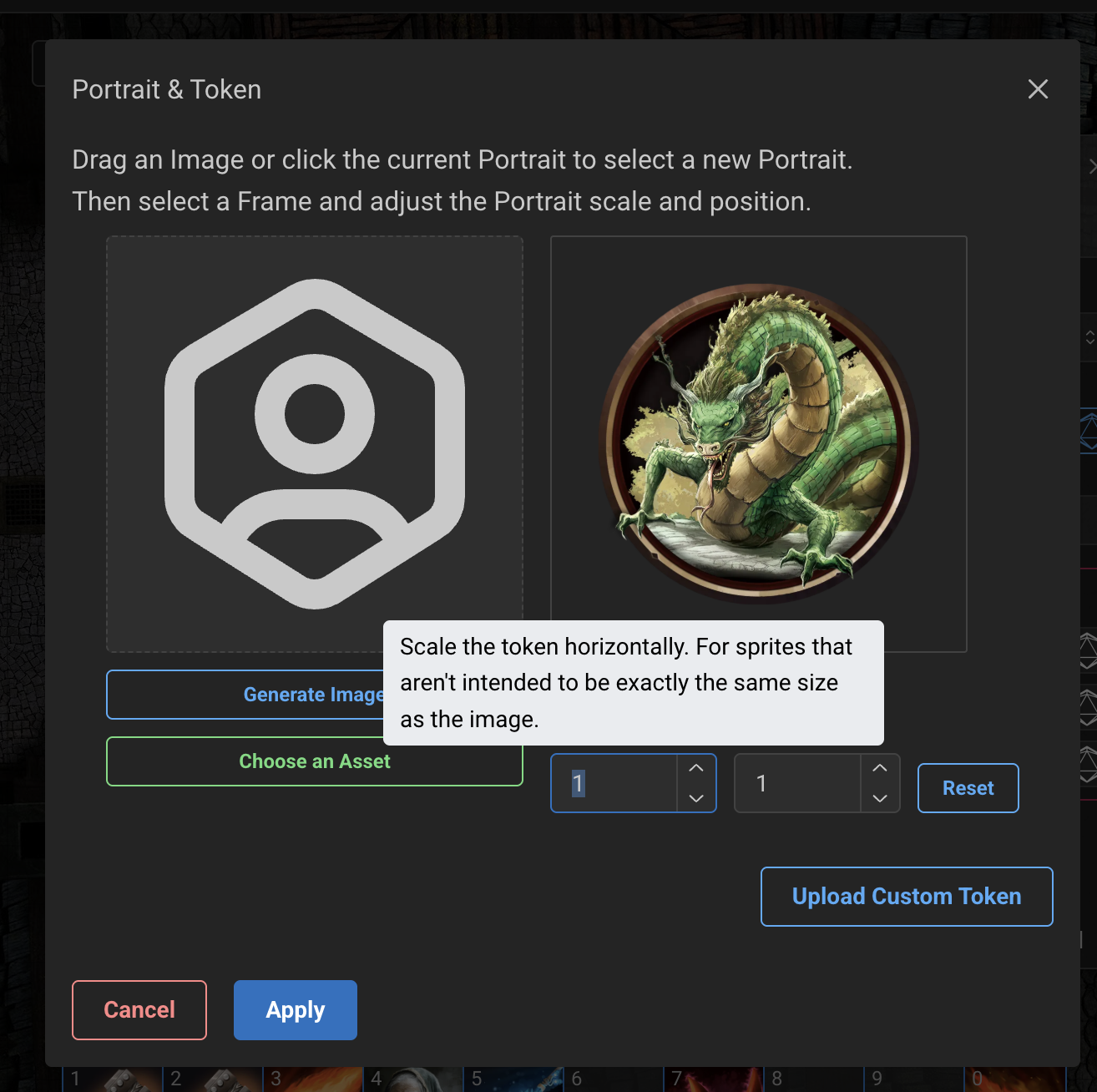
- Click Apply
- Once you've added all your custom tokens you are ready to export your module!
Exporting Your Custom Token Module
To export your module so you can reuse them in other campaigns:
- Click Modules at the top
- Click Export Module
- Give your module a unique title and slug — you will get an error if a module exists with that slug already
- You can set a portrait and a description for the module if you wish as well
- Unless you have other items you wish to include in the module (custom NPCs, Items, Spells, etc.) all you need to do is scroll to the bottom and select "Portraits and Tokens." If you wish to include other content, select those as well, and the shared setting for them when imported.
- Click Export
- You can now add all your tokens to another campaign by first importing the SRD module and then importing your custom Tokens module! Since you've only uploaded the tokens once, these images only count towards your asset usage once.
If you want to create a module with your own custom NPCs instead, follow the same steps, but instead be sure to select the "NPCs" option when selecting which records to export.
Best Practices for Managing Your Token Library
As your collection grows, a bit of organization goes a long way. Here are some habits that will save you time over many sessions:
- Name your modules clearly. Use descriptive module names like "Pop-Out Dragon Tokens" or "Undead Pack — Shadowed Art" rather than generic names. When you have a dozen modules across multiple campaigns, clear naming prevents confusion.
- Keep your development campaign intact. As mentioned in the steps above, your development campaign is the source of truth for your exported module. Deleting it can break image links in every campaign that imported the module. Treat it as a permanent workspace.
- Batch your uploads by theme or creature type. Rather than uploading one token at a time across many sessions, set aside time to process an entire art pack at once. This keeps your module organized and avoids half-finished sets scattered across campaigns.
- Test on a live map before exporting. Drop your newly-uploaded tokens onto a map scene and check how they look at different zoom levels. Make sure the scale feels right and the art is readable next to other tokens. It only takes a minute and catches problems before they reach your players.
- Version your modules when updating. If you revise your token art or add new creatures to a module, consider including a version number in the module title or description. This makes it easy to tell which campaigns are using the latest set.
Pairing Custom Tokens with Maps and Macros
Custom tokens shine brightest when they are part of a fully prepared encounter. After uploading your tokens, consider building out the scenes and automation around them:
- Place tokens on a prepared map scene. Use the Realm VTT canvas tools to draw or import a battle map, configure your grid settings, and position your custom-token NPCs exactly where you want them for the encounter. Seeing a beautifully illustrated dragon token perched on a detailed lair map creates an unforgettable moment at the table.
- Attach macros for quick actions. If your monster has signature abilities — a breath weapon, a multi-attack routine, a spell — pair the token with a custom macro so you can trigger the action with a single click during combat. This reduces prep time and keeps the session flowing.
- Use grid settings to match the map. Whether you are playing on a square grid, hex grid, or isometric layout, make sure your token scale matches the grid type. A 2x2 pop-out token looks different on a hex grid than it does on a square grid, so preview it before game night.
Final Thoughts
Custom monster tokens are one of the simplest upgrades you can make to your Realm VTT campaigns, and the module system ensures that the effort pays off across every campaign you run. Upload once, export as a module, and import wherever you need it — no duplicate uploads, no wasted storage, and a consistent visual experience for your players.
Take the time to curate a token library that matches your campaign's tone and art style. Your players will notice the difference the moment you drop that first custom dragon token onto the map.