Realm VTT is loaded with features, and knowing the core mechanics will help you run smoother sessions from your very first game. Whether you are a Game Master setting up a campaign or a player joining one for the first time, these five tips cover the fundamentals you will use in every session. Once you have these down, everything else in the platform builds naturally on top of them.
1. Add Character and NPC Tokens
Drag Characters or NPCs from the Compendium List to the Scene to add their tokens. First make sure you have an Active Scene in the Scenes tab on the left by clicking the Map icon.
This is the starting point for any encounter. When you drag a character or NPC from the compendium, Realm VTT places their token on the map with all of their stats, abilities, and inventory already linked. That means clicking the token opens the full character sheet — no manual linking or setup required.
A few things to keep in mind:
- Player characters should be created in the Characters section of the compendium before the session. Players can then be assigned ownership of their character so they can control their own token.
- NPCs and monsters can be dragged in during play. If you are running a planned encounter, set up the tokens ahead of time and hide them behind Fog of War until the party arrives.
- Custom tokens let you replace the default token image with your own art. For a step-by-step walkthrough, see our guide on enhancing your monsters with custom tokens.
Getting tokens set up correctly before the session starts will save you time during play and keep the action moving.
2. Token Movement
Tokens can be moved by clicking and dragging them with the left mouse button or using WASD, Arrow Keys, or the Numpad.
Drag-to-move is the most intuitive option — click the token, hold the mouse button, and drag it where you want it to go. You will see a movement path indicator showing the distance traveled, which is useful for tracking how far a character has moved during their turn.
Keyboard movement with WASD or arrow keys is especially handy for precise, grid-aligned movement. Each keypress moves the token exactly one grid square (or hex), making it easy to count out movement distances without accidentally overshooting. The numpad offers diagonal movement on square grids, which is helpful for characters trying to get the most out of their movement speed.
If you are a GM, you can move any token on the map. Players can only move tokens they own, which keeps things orderly during combat and exploration.
3. Token Rotation
Rotate tokens by selecting one, holding R, and using the mouse to adjust the angle.
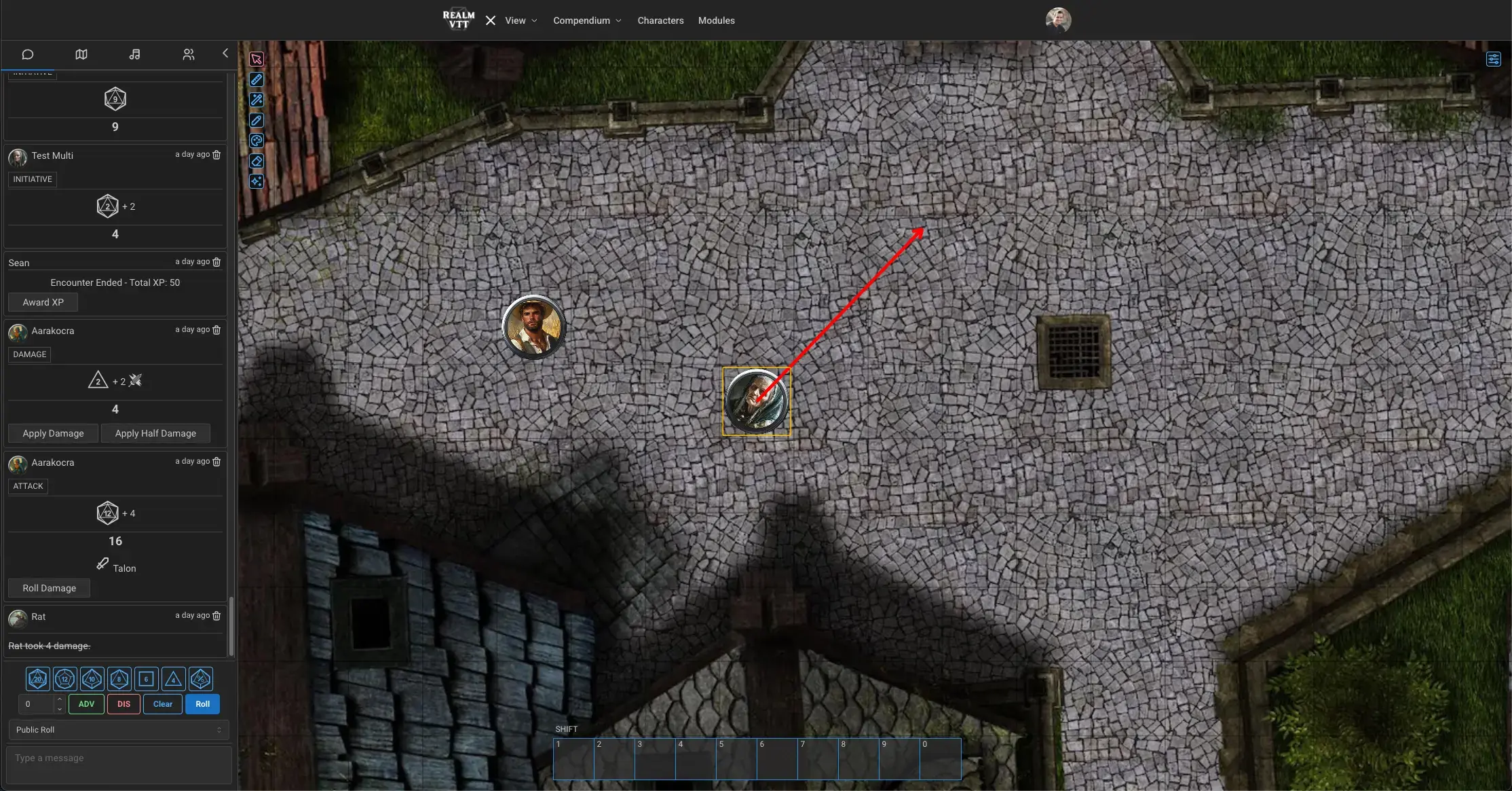
Token rotation might seem like a small detail, but it matters more than you would expect. Facing direction affects how dynamic lighting and line of sight work — a character's vision cone follows the direction their token is facing. This means rotating a token is not just cosmetic; it changes what that character can see on the map.
Rotation is also a great tool for GMs who want to visually indicate which direction an NPC guard is watching, or for players who want to position their character to peer down a corridor before stepping into it. Hold R, move the mouse to set the angle, and release to lock it in place.
4. Ping the Map
Ping the map by holding down the left mouse button or pressing the Tilde (~) key. The GM can hold Control while pinging to pan all the players.
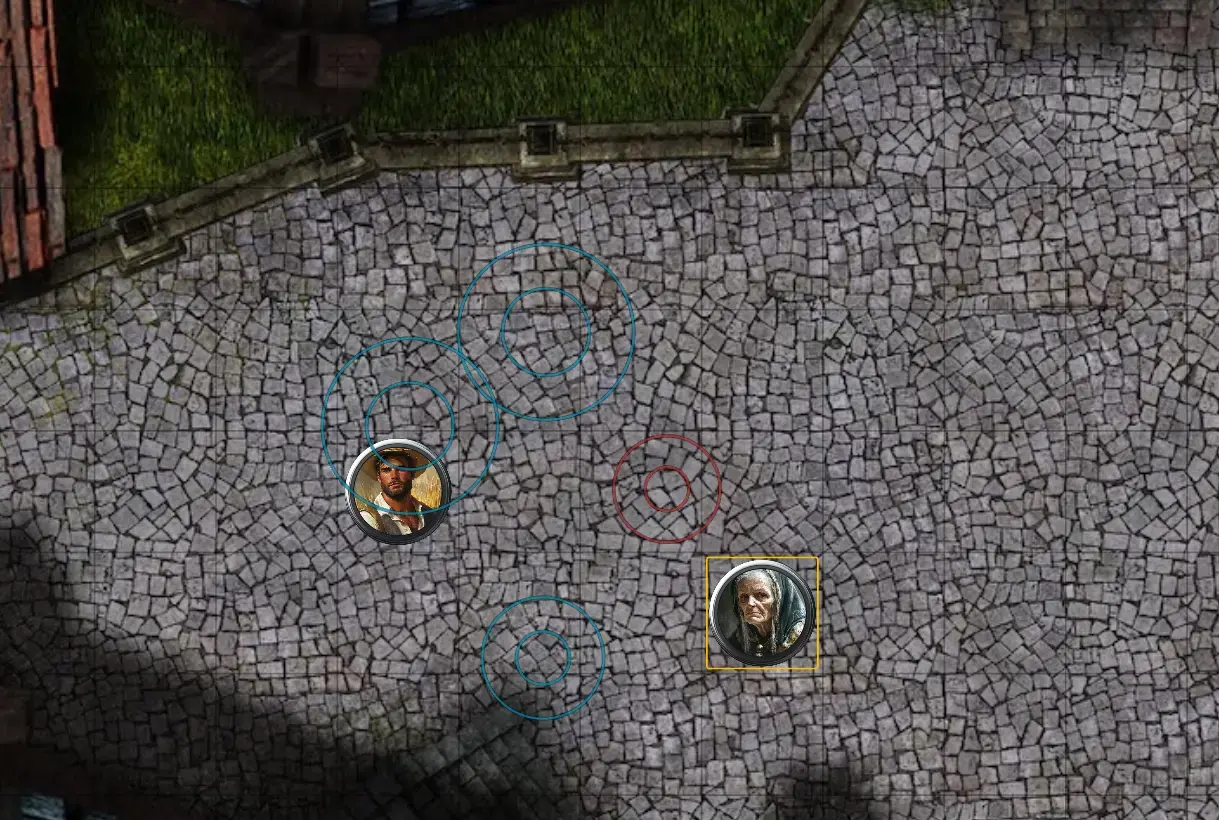
Pinging is one of those features that sounds simple but quickly becomes essential. When a player says "I move over there," a quick ping shows everyone exactly where "there" is. No confusion, no misdirection.
The GM's Control-ping is even more powerful. Holding Control while pinging forces every player's view to snap to the pinged location. This is perfect for dramatic reveals — pulling back the Fog of War on a new room and immediately panning the entire party's view to the entrance. It is also useful during combat when a player's camera has drifted and they need to see where the action is happening.
Use pings liberally. They cost nothing, take a fraction of a second, and eliminate the "wait, where?" conversations that slow down sessions.
5. Drag and Drop Sounds, Journals, and More
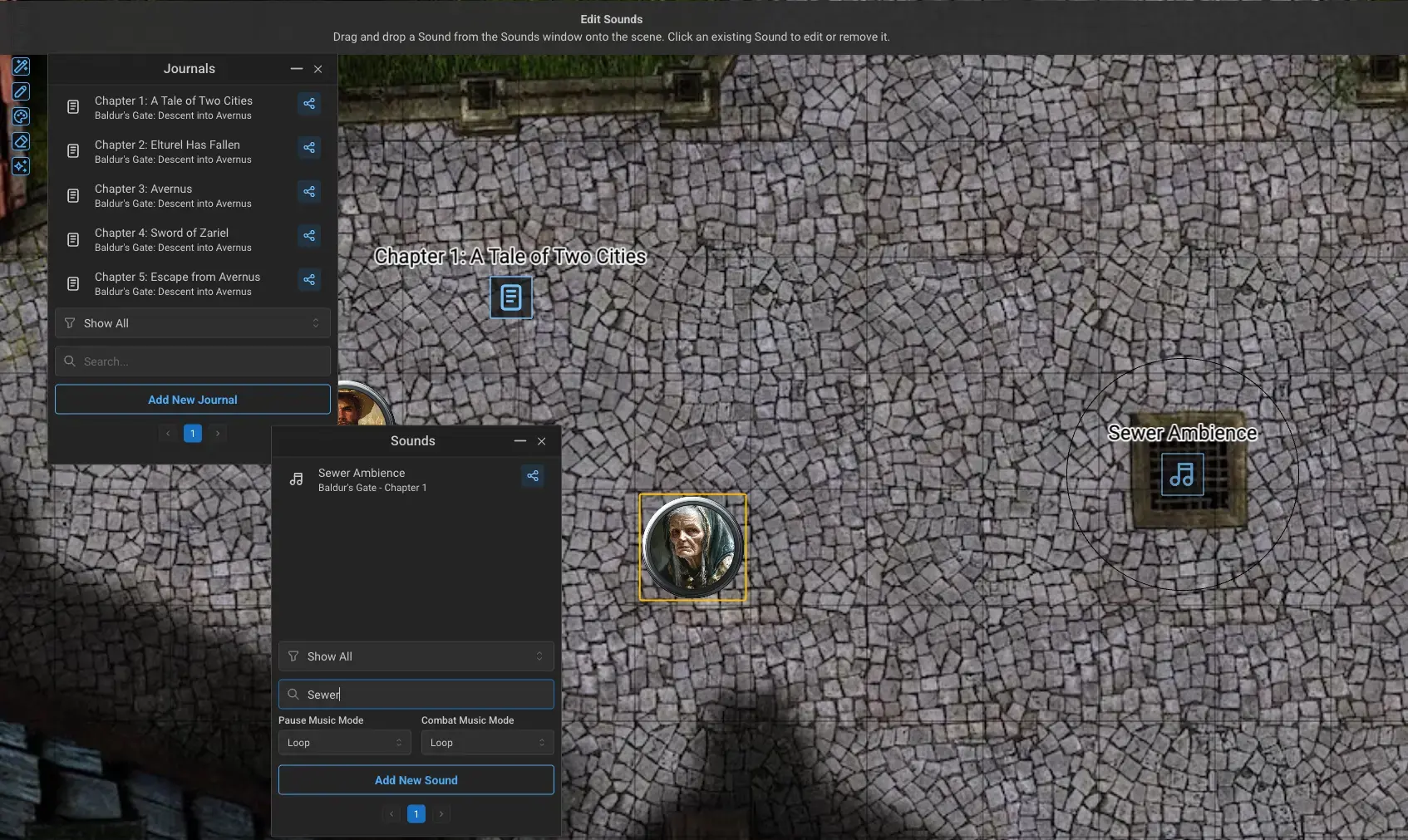
You can even drag Sounds, Journals, and other record types to your active Scene.
This is where Realm VTT's drag-and-drop philosophy really shines. Almost anything in the compendium can be placed directly onto the map, and each type of record behaves differently when dropped:
Sounds
Dragging a sound file onto the scene places an ambient sound source at that location. The sound plays for tokens within a configurable fall-off radius, meaning players only hear it when their characters are nearby. Use this for crackling torches in a dungeon, tavern music, rushing water, or the ominous hum of a magical artifact. Positional audio adds a layer of immersion that flat background music cannot match.
Journals
Journal entries dropped on the scene become private GM notes pinned to a specific location. This is perfect for remembering what happens when the party opens a particular door, or storing the DC for a hidden trap. Only the GM can see these pins, so you can load a scene with notes without giving anything away to your players.
Items and Spells
Dragging a record like a Spell or an Item shows its icon on the Scene and allows anyone to double-click it to see the full details. This is useful for placing quest items on a map, marking lootable objects, or putting environmental hazards where players can inspect them. For a deeper look at how inventory and looting work, check out the D&D 5e Looting Guide.
Images
Dragging an Image adds it to the Scene as a Tile. Use this to layer decorative elements, place furniture, add visual markers, or build out your map with additional detail.
For more on building out your scenes visually, see our guide on Canvas Scenes and map drawing.
Putting It All Together
These five mechanics — tokens, movement, rotation, pinging, and drag-and-drop — are the foundation of every Realm VTT session. Once they are second nature, you will spend less time figuring out the tool and more time playing the game. Combine them with features like custom macros to automate dice rolls and you will have a workflow that keeps your sessions moving at the pace your story deserves.
Ready to try it out? Jump into Realm VTT and start your next campaign.
Read More
- D&D 5e Looting Guide — Learn how to loot enemies, create treasure chests, and manage inventory in Realm VTT.
- How to Write Custom Macros in Realm VTT — Automate dice rolls, apply effects, and speed up your D&D 5e sessions.
- Canvas Scenes Map Drawing Guide — Sketch dungeon maps on the fly with collaborative drawing tools.