Interactive World Maps: A Guide to Atlas Mode
Most virtual tabletops treat a world map like any other battle map: a flat image you drop tokens onto. Atlas Mode turns that image into an interactive world map, a searchable, zoomable atlas where every location is a point of interest, settlements connect into travel routes, and the map tells you how far it is from one place to another and how long the journey takes.
It works for any setting. A continent of kingdoms, a sprawling megacity, a star cluster crossed by hyperlanes: if you have a map, you can make it an atlas. The galaxy map below is one example built entirely with Atlas Mode.
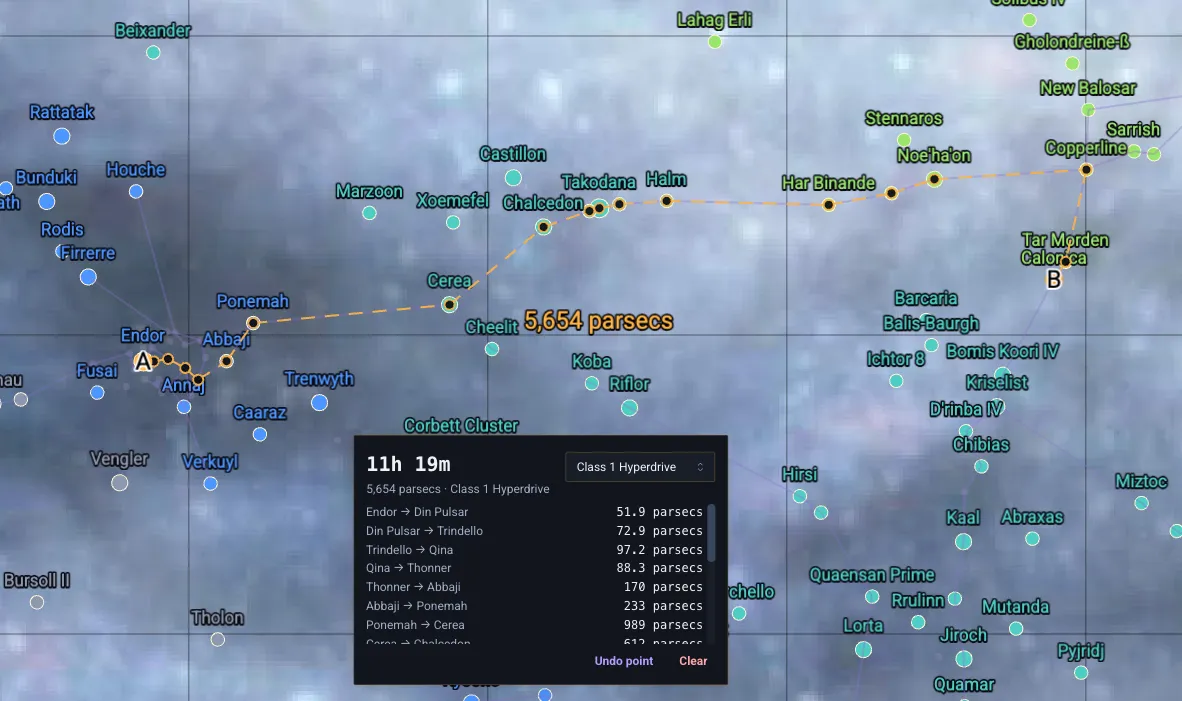 In this guide we'll walk through everything Atlas Mode can do, from placing your first point of interest to planning a multi-leg journey your whole table can see.
What Atlas Mode Is
Atlas Mode is a layer that sits on top of a normal scene. Instead of tokens and initiative, it gives you:
Points of interest (POIs): named, categorized locations on the map.
Zoom-based detail: major locations are always visible; minor ones reveal as players zoom in, so a dense map never becomes a wall of text.
Connections and routes: link locations into travel networks, then plan trips that follow those connections and report real distance and travel time.
Search and fly-to: jump to any location by name, even on a map with thousands of points.
Journal links: attach lore to any POI and open it in a click.
Everything is per-scene, so one campaign can hold a world map, a regional map, and a city map, each with its own atlas.
Opening the Atlas Panel
Atlas Mode is controlled from the scene controls. Open a scene, then toggle the Atlas panel, a floating panel that lists the scene's points of interest, with a search box at the top and the atlas tools along the side.
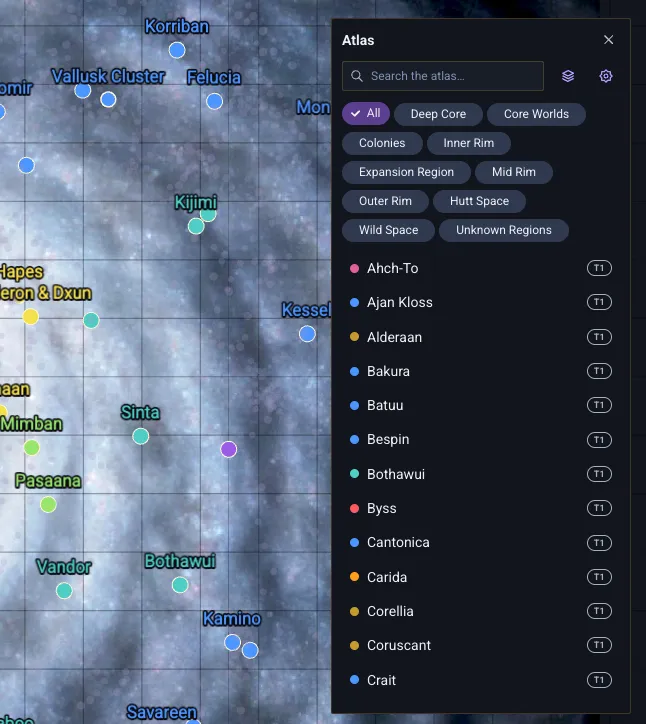 Because not every scene is an atlas, the panel and its tools only appear on the left hand Tools area when your current Scene has Points of Interest on it. (See below.)
Placing Points of Interest
To place Points of Interest, click the Scene Controls on the top right, then click the Point of Interest button.
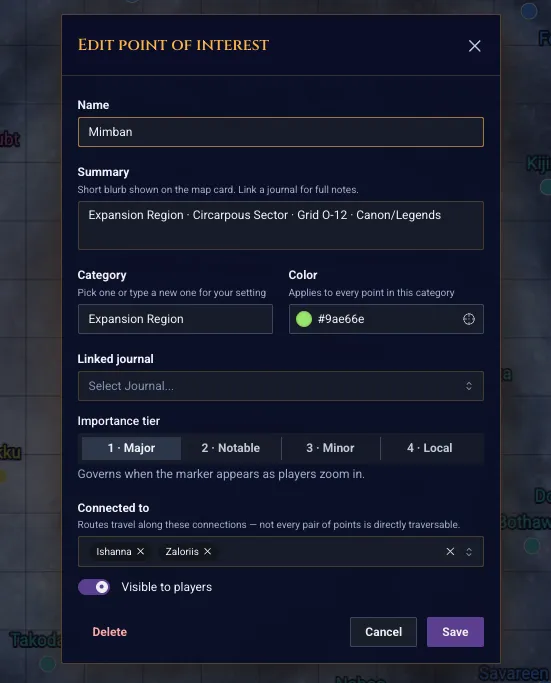
With the Point tool selected (GMs only), click anywhere on the map to drop a new point of interest. The editor opens so you can fill in the details:
Name: what shows on the map and in search.
Summary: a short blurb shown on the location's card.
Category: a color-coded type you define for your setting (see below).
Importance tier: controls when the location appears as players zoom (see below).
Visible to players: keep secret locations hidden until you're ready to reveal them.
Linked journal: attach a journal entry for full lore and notes.
 As a GM you can click and drag any point to reposition it; it follows your cursor and only saves when you let go.
Categories and Colors
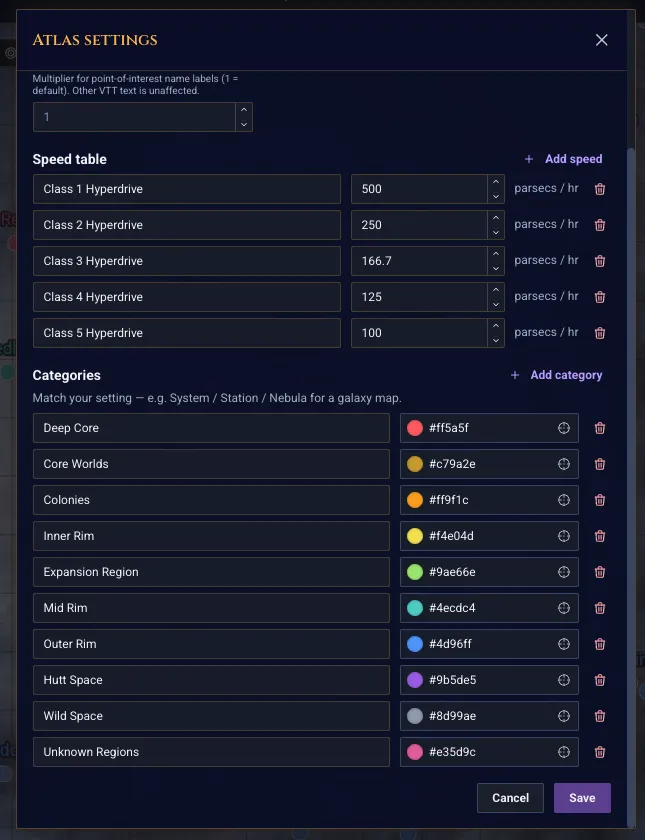
Locations are grouped into categories you define to match your world such as Cities / Towns / Ruins for a fantasy map. Each category has a color, and every point in it shares that color on the map and in the panel. Set these up in Atlas settings, or just type a new category name while editing a point and it's created for you.
Tiers: Detail That Scales With Zoom
A world map can have thousands of locations, and showing them all at once is unreadable. Importance tiers solve this. Each point has a tier from 1 (major) to 4 (local), and higher-numbered tiers only reveal as players zoom in. Labels also de-clutter automatically: names that would overlap are hidden until there's room, so the map stays legible at every zoom level.
The result is a map that behaves like a real digital atlas: zoomed out you see the headline locations, and as you dive into a region its smaller settlements appear.
Setting the Map Scale
For distances and travel times to mean anything, Atlas Mode needs to know your map's scale. Open Atlas settings and either enter the units-per-pixel directly, or use Calibrate by two points: click two locations whose real distance you know, type that distance, and the tool works out the scale for the whole map. Set the unit label too: miles, leagues, parsecs, whatever fits your setting.
Travel Speeds
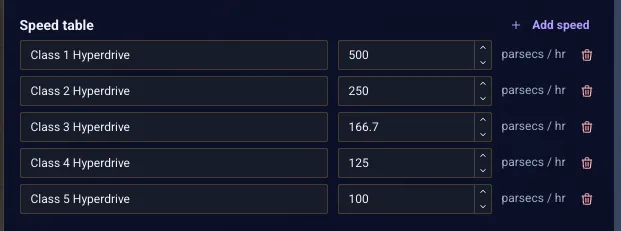
Add a speed table in Atlas settings so route planning can show travel times, not just distances. Give each speed a name and a rate in your units per hour: "On foot" at 3 miles/hour, "Horseback" at 6, "Sailing ship" at 5, or for a galaxy, hyperdrive classes (a Class 1 covers 500 parsecs/hour, a Class 2 covers 250, and so on). When a route is active you can switch speeds on the fly and the time updates instantly.
Connecting Locations
Not every pair of locations is directly traversable; you don't sail across a mountain range. The Connect tool lets you define which locations link to which. Click location A, then location B, to toggle a connection between them; the chain continues from B so you can lay down a whole road or trade network with one click per link. Routes then follow these connections rather than cutting straight across the map.
Planning a Route
This is where it all comes together. With the Route tool, click a starting location and then a destination. The tool finds the shortest path through your connections and shows a breakdown in the route panel: total distance, total travel time at the selected speed, and a per-leg list of every hop along the way.
If two points have no connected path between them, it measures that leg as a direct path and tells you so, so you always get a distance and a time. You can also open any location's card and choose Route from here to start a new route, or Add to route to extend the one you're building.
Also, routes are shared. When you plan a route, every player viewing the same scene sees it too.
Searching and Jumping Around
On a big map, scrolling to find a location is tedious. The search box at the top of the Atlas panel filters every point of interest by name as you type, and it searches the whole map, not just what's on screen. Click a result and the camera flies to that location and opens its card.
Linking Lore With Journals
Any point of interest can link to a journal entry. Open a location's card and click Open journal to bring up its full write-up: history, NPCs, secrets, maps within maps. It's the fastest way to keep your worldbuilding attached directly to the places it describes.
A Few Handy Tips
Right-click to pan. While any atlas tool is active, right-click-drag still pans the camera, so you can move around without disarming your tool.
Render a grid on a gridless map. World maps are usually gridless, but if you want a coordinate overlay you can turn on "Render Grid" in the scene's grid settings.
Tune the label size. If your setting's names run long, adjust the POI label size in Atlas settings to taste.
Share atlases through modules. When you export a scene that has an atlas, its points of interest come along, so you can package a fully-built world map and share it, or drop one in from the marketplace.